Using my own Xamarin.Android ShowcaseView component as an example, I want to show how to create a component and what to pay attention to so that approval can happen quickly. If you do not yet know how to extend your app with such little helpers, this is a good place to start. Custom components are a key building block whenever we structure cross-platform app development cleanly and want to share reusable pieces across multiple projects.
Preparation
Xamarin provides a template with the basic structure for a component at https://github.com/xamarin/component-template. The first step should therefore be to gather all the required information.

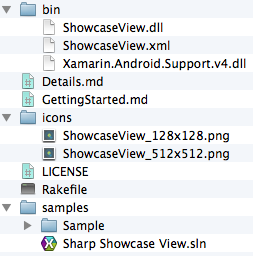
The bin directory
The bin directory contains all assemblies required for the component. Besides the actual ShowcaseView.dll, this also includes Xamarin.Android.Support.v4.dll, because it is referenced within ShowcaseView.dll. If a developer does not already have this assembly, it is provided this way. ShowcaseView.xml helps developers get started through IntelliSense support. It would not be strictly necessary.
The Xamarin.Android.Support.v4 reference could also have been replaced by the component provided by Xamarin. That way it would be downloaded automatically for the user if it were not already present. At the time ShowcaseView was submitted, that was not yet clear.
The sample application
Every component ships with at least one sample application for each supported platform to make it easier for developers to get started with the component. In practice, you usually test your own component with a demo app anyway. You can simply copy that app into the samples directory and adjust the component references.
Details and GettingStarted
Both files are important because their content is displayed on the component's website. I have not yet found the perfect structure for them.
In principle, however, Details.md should describe what the component does. Unlike what the name might suggest, it is effectively the cover page in the Xamarin Component Store.
In GettingStarted.md, you provide guidance and additional information on how to work with the component.
The Rakefile
The Rakefile is the place where all component information comes together. You can open the file in a text editor and adjust the information accordingly.
At this point I just want to mention --library="PLATFORM", which can be used multiple times. The template includes only one entry for iOS and Android, which can be confusing, especially when you create your first component and have multiple files in the bin directory.
COMPONENT = "ShowcaseView-1.0.xam"

mono xamarin-component/xamarin-component.exe create-manually #{COMPONENT} \
    --name="ShowcaseView for Xamarin.Android" \
    --summary="Add an Android-like showcase view to your Xamarin.Android apps and help your user to getting started faster." \
    --publisher="Cayas Software" \
    --website="http://www.cayas.de" \
    --details="Details.md" \
    --license="License.md" \
    --getting-started="GettingStarted.md" \
    --icon="icons/ShowcaseView_128x128.png" \
    --icon="icons/ShowcaseView_512x512.png" \
    --library="android":"bin/ShowcaseView.dll" \
    --library="android":"bin/ShowcaseView.xml" \
    --library="android":"bin/Xamarin.Android.Support.v4.dll" \
    --sample="Android Sample. Demonstrates the use of ShowcaseView on Xamarin.Android":"samples/Sharp Showcase View.sln"
As the ShowcaseView Rakefile shows, --library="PLATFORM" can be used as often as needed.
Once all important information has been collected and referenced correctly, it is time to bundle everything into a package. To do that, open a terminal on OS X, switch to the directory, and run rake. In the end, a .xam file will be created in the directory, which is essentially just a renamed zip archive.
It is recommended to unpack the archive and open the sample application from there. If everything works, the component is ready to be uploaded to Xamarin.
Uploading to Xamarin
To make the component available to interested developers, it has to be uploaded at components.xamarin.com/submit/. You must also classify what type of component it is. In the case of ShowcaseView, that is the "User Interface" category.
Additional information can also be provided. For example, you can decide whether the component is paid. In that case, Xamarin will contact you regarding pricing structure and commission.
Once all settings are complete, Xamarin will review the component and may suggest improvements. If the following recommendations are considered in advance, a quick approval should be possible.
Recommendations for faster approval
To speed up approval of the component by Xamarin, I recommend keeping the following in mind beforehand:
- compile the component assembly with the minimum supported SDK version
- use a three-part version number for
COMPONENT in the Rakefile - do not use the suffix "for Xamarin.Android" or "for Xamarin.iOS" in the component name
- change the reference to your own component in the sample project to point to the
bin directory - test the sample project with different linker settings (
none, SDK-only, all) - in the Android sample project, configure the platforms (
armeabi-v7a, x86) under Android Build -> Advanced
The last point in particular ensures that the sample project can be tested immediately under Android on a real device or the emulator.
Unfortunately, I did not take points two and three into account for ShowcaseView. It is not a big issue for the name, but it is annoying when updating a component and the version number is not set up accordingly.
You can also find further information in the Xamarin Component Guidelines.
Sebastian Seidel
As a mobile enthusiast and managing director of Cayas Software GmbH, it is very important to me to support my team and our customers in discovering new potential and growing together. Here I mainly write about the development of Android and iOS apps with Xamarin and .NET MAUI.