Building Bluetooth LE Apps with .NET MAUI: LEGO Porsche GT4 as a Practical Example
Bluetooth Low Energy with .NET MAUI: This article shows how to connect BLE-enabled devices cross-platform for Android and iOS. The LEGO Porsche GT4 e-Performance with the official LEGO Wireless Protocol serves as a practical example, including hub service, port detection, and motor control.
BlogBuilding Bluetooth LE Apps with .NET MAUI: LEGO Porsche GT4 as a Practical Example
Bluetooth Low Energy is today the foundation for many hardware integrations in mobile apps: medical devices, logistics scanners, smart building components, and remote-controlled vehicles. With .NET MAUI, you can build a shared app for Android and iOS that encapsulates native BLE communication behind a clean abstraction layer. If you know our older Xamarin posts, you will recognize the core principle immediately: a mobile app connects to a device, sends control commands, and reacts to events in real time. As a concrete practical example, we use the LEGO Porsche GT4 e-Performance Race Car (42176), which implements the official LEGO Wireless Protocol over BLE.
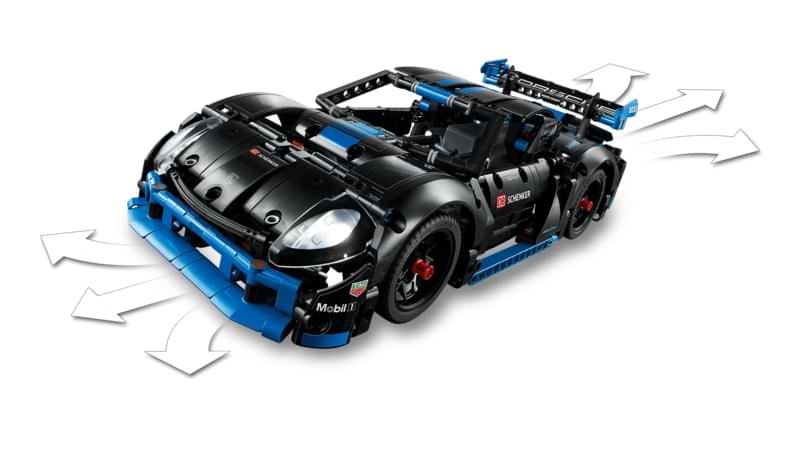
The model belongs to the LEGO Technic CONTROL+ series. LEGO describes it as a remote-controlled vehicle that can be operated with the CONTROL+ app, including steering, forward and backward driving, light control, and live data display. That is exactly what makes the Porsche GT4 e-Performance an interesting candidate for an experiment with .NET MAUI and native BLE communication.
The connection to the old Xamarin project is intentionally preserved. Back then, the goal was to control a small vehicle through an app. Today, the technical foundation is more sophisticated: instead of RFCOMM and classic Bluetooth, we work with a BLE-based hub profile featuring clearly defined message formats, port events, and output commands.
That is exactly where .NET MAUI plays to its strengths. The UI, the ViewModel, and large parts of the app logic can be developed together. The BLE connection and communication with the LEGO Hub stay platform-specific or are encapsulated behind a suitable abstraction.
Anyone looking to modernize an existing Xamarin app in this direction will find useful starting points on our Xamarin Migration to .NET MAUI page.
What the LEGO Wireless Protocol Defines
The official LEGO protocol describes a central BLE service with a single GATT characteristic for LEGO Bluetooth 3.x hubs. The LEGO Hub Service uses the UUID 00001623-1212-EFDE-1623-785FEABCD123, and the associated Characteristic uses the UUID 00001624-1212-EFDE-1623-785FEABCD123. Both commands and hub notifications are exchanged through this single characteristic.
For a custom app, three things matter most:
The device is discovered and connected via Bluetooth Low Energy.
After connecting, the hub reports attached components through Hub Attached I/O messages of type 0x04.
Motors and other actuators are controlled via Port Output Command messages of type 0x81.
That means: we do not target a "Porsche mode" directly, but the underlying LEGO Hub with its ports, motors, and commands.
Target Architecture in .NET MAUI
For the implementation, a clear structure works well:
Shared UI in XAML
Shared ViewModel
An ILegoVehicleService as the domain interface
BLE connection to the LEGO Hub
Parsing of incoming hub messages
Sending port commands for drive, steering, and optionally lights
This keeps the code testable and the LEGO protocol layer cleanly separated from the UI. Scenarios like this are exactly where .NET MAUI App Development excels: shared surfaces, shared business logic, and still full access to native platform features.
The User Interface
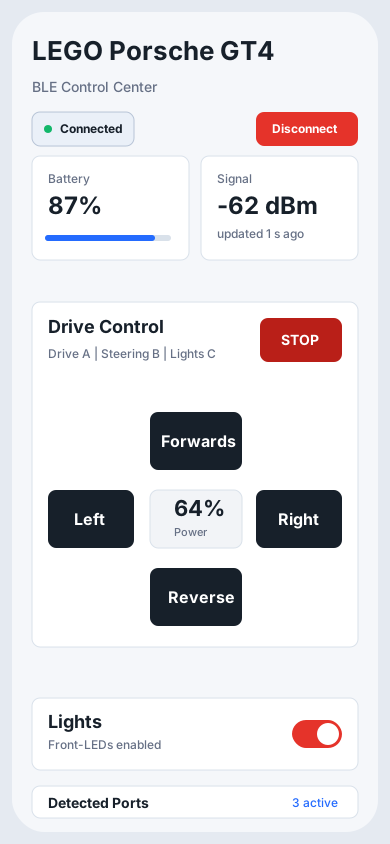
Just as with the BeeWi Car example, the app needs visible controls. For a real mobile app, however, the interface should do more than show a few individual buttons: the user needs to see immediately whether the hub is connected, which ports were detected, which power setpoint the app is currently sending, and whether critical actions such as lights or emergency stop are within reach.
The layout deliberately shows the connected driving state. Hub selection and scanning can happen before that in a separate state or on a separate view. For the actual driving controls, Pressed and Released events remain useful because motor commands stay active only while the user is actually holding a direction.
It is important to distinguish real hub data from application state:
Battery and Signal are real hub values. They can be requested or subscribed to via Hub Properties: Battery Voltage returns a percentage, while RSSI returns a signal value in dBm.
Detected ports are derived from Hub Attached I/O messages. The app still has to map those ports to roles such as drive, steering, and lights.
Power in this UI is not a measured live motor value. It represents the last motor command setpoint sent by the app. If you want real motor feedback, you need to subscribe to suitable port input modes of the connected motor, such as position, speed, or tacho values, depending on what that motor supports.
Lights enabled is initially application state. It becomes more reliable if the app also evaluates Port Output Command Feedback and updates the UI only after a successful command.
Connected, Disconnect, ConnectionColor, and updated 1 s ago come from the BLE connection or the ViewModel, not from a ready-made LEGO UI value.
Avalonia also offers an interesting approach. You can find a direct comparison here
The Shared Interface
To keep the ViewModel unaware of whether it is running on Android or iOS, we encapsulate the vehicle logic behind an interface.
On this basis, the ViewModel can later send commands without needing to know any details about the platform-specific BLE implementation. Unlike the old BeeWi example, we are not sending raw "drive commands" but already domain-level functions such as drive, steering, and lights.
LEGO-Specific Constants
In the protocol, we need to address the hub service and characteristic by their exact identifiers.
public static class LegoBleConstants
{
    public static readonly Guid HubService = Guid.Parse("00001623-1212-EFDE-1623-785FEABCD123");
    public static readonly Guid HubCharacteristic = Guid.Parse("00001624-1212-EFDE-1623-785FEABCD123");

    public const byte HubPropertiesMessageType = 0x01;
    public const byte HubAttachedIoMessageType = 0x04;
    public const byte PortOutputCommandMessageType = 0x81;
    public const byte PortOutputCommandFeedbackMessageType = 0x82;

    public const byte RssiProperty = 0x05;
    public const byte BatteryVoltageProperty = 0x06;

    public const byte RequestUpdateOperation = 0x05;
    public const byte UpdateOperation = 0x06;
}
One key difference from simple Bluetooth toys: with the LEGO Hub, we first need to understand which components are attached to which ports. According to the protocol, the hub reports attached I/O devices via Hub Attached I/O messages of type 0x04. Through these, the app learns which port IDs are relevant for motors and other components.
In practice, that means:
Connect to the hub
Subscribe to notifications on the LEGO characteristic
Parse incoming messages
Determine port IDs for drive, steering, and lights
A simplified parsing example could look like this:
private readonly Dictionary<string, byte> _ports = new();

private void HandleNotification(byte[] data)
{
    if (data.Length < 3)
        return;

    var messageType = data[2];

    if (messageType == LegoBleConstants.HubAttachedIoMessageType)
    {
        var portId = data[3];
        var eventType = data[4];

        if (eventType == 0x01 && data.Length >= 8) // Attached I/O
        {
            var ioTypeId = BitConverter.ToUInt16(data, 5);

            RegisterPort(portId, ioTypeId);
        }
    }
}

private void RegisterPort(byte portId, ushort ioTypeId)
{
    // Simplified mapping; real port roles must be verified against the physical device.
    if (!_ports.ContainsKey("drive"))
        _ports["drive"] = portId;
    else if (!_ports.ContainsKey("steering"))
        _ports["steering"] = portId;
    else if (!_ports.ContainsKey("lights"))
        _ports["lights"] = portId;
}
What matters is not the heuristic itself but the principle: only once the ports are known can the app send targeted commands to the right motor or output.
Sending Port Output Commands to the Hub
For motors, the LEGO protocol uses the Port Output Command 0x81 message type. The documentation describes a common message format with port ID, startup and completion information, and a sub-command. Motor commands such as StartPower are documented there, with values from -100 to 100 defining direction and power, while 0 means float and 127 means brake.
For a simple driving example, you can build a small helper method:
This lets you express simple control functions cleanly:
public Task SetDrivePowerAsync(sbyte power, CancellationToken cancellationToken)
    => SendStartPowerCommandAsync(_ports["drive"], power, cancellationToken);

public Task SetSteeringPowerAsync(sbyte power, CancellationToken cancellationToken)
    => SendStartPowerCommandAsync(_ports["steering"], power, cancellationToken);

public Task StopDriveAsync(CancellationToken cancellationToken)
    => SendStartPowerCommandAsync(_ports["drive"], 0, cancellationToken);

public Task StopSteeringAsync(CancellationToken cancellationToken)
    => SendStartPowerCommandAsync(_ports["steering"], 0, cancellationToken);
Depending on the attached device and port mode, steering and lights may require different initialization or a different sub-command. This can only be validated against the physical model.
Planning a project with Bluetooth LE or .NET MAUI?
Our team has experience with BLE integrations for Android and iOS. We help you choose the right architecture and implement it efficiently on both platforms.
Why the LEGO Porsche Is More Interesting Than the Old BeeWi Car
The BeeWi Car was a great introductory project. The LEGO Porsche GT4 e-Performance is a far more realistic example of modern app-to-hardware communication:
BLE instead of a classic Bluetooth socket
Documented protocol instead of proprietary individual commands
Multiple ports and device classes instead of a single target device
Extensibility for telemetry, lights, and additional functions
That is precisely why this model works well for turning an old Xamarin demo scenario into a contemporary .NET MAUI example.
Where .NET MAUI Shines in This Scenario
The real value of .NET MAUI here is not that it makes BLE "magically" platform-independent. The value is that we can build shared surfaces, shared business logic, and shared protocol abstractions without ignoring the native specifics of Android and iOS.
That becomes especially relevant when an experiment eventually becomes a real product. That is exactly where a cross-platform approach, native platform integration, and clean software architecture come together. Teams looking to implement these integrations specifically for Android or iOS will find more information on our Android App Development and iOS App Development pages.
When Does BLE Make Sense for IoT Projects?
The LEGO model is an illustrative example, but Bluetooth Low Energy plays a central role in far more demanding scenarios. Wherever devices need to conserve energy, no permanent Wi-Fi infrastructure is available, and communication is limited to short distances, BLE is the right choice.
Typical industries and use cases:
Medical technology: blood glucose meters, heart monitors, and infusion pumps transmit measurement data via BLE to mobile apps
Logistics and retail: Bluetooth scanners, label printers, and beacon-based location systems
Smart building: locks, sensors, and control modules without a permanent power supply
Industry and maintenance: diagnostic devices that a technician reads out or configures on-site via app
Consumer goods and wearables: fitness devices, headphones, smart home accessories
Compared to Wi-Fi-based solutions, BLE stands out in energy consumption and simple pairing without central infrastructure. Compared to proprietary radio solutions, it provides an open, documented protocol with broad platform support on Android and iOS. MQTT as a complement makes sense once communication needs to go beyond the local device pair and a central backend is involved.
For .NET MAUI, the same argument applies here as in the LEGO example: a single project for Android and iOS, a shared protocol layer, and clean abstractions that make later testing and extension easier. That holds regardless of whether the device is a toy car or an industrial instrument.
Teams planning such a project or looking to extend an existing hardware solution with a mobile app will find further information on our .NET MAUI App Development and Mobile App Development pages.
Conclusion
The old Xamarin project around the BeeWi Car was a solid entry point into mobile hardware control. The LEGO Porsche GT4 e-Performance Race Car takes that principle to a more modern level. Instead of classic Bluetooth socketing, we work with Bluetooth Low Energy, the official LEGO Hub Service, and clearly defined Port Output Commands.
For .NET MAUI, this is an excellent scenario: the UI and large parts of the logic remain cross-platform, while the technical communication with the LEGO Hub is cleanly encapsulated. Anyone looking to modernize existing mobile projects or build new solutions with hardware integration will find a practical example in this combination of .NET MAUI and the LEGO BLE Protocol.
The model 42176 is a remote-controlled LEGO Technic vehicle from the CONTROL+ series. LEGO describes it as an interactive vehicle with app control for steering, direction, lights, and live data.
Communication with the LEGO Hub uses Bluetooth Low Energy. The official LEGO documentation describes a dedicated hub service and a single characteristic for writing commands and receiving notifications.
The LEGO Hub Service uses 00001623-1212-EFDE-1623-785FEABCD123, and the associated characteristic uses 00001624-1212-EFDE-1623-785FEABCD123. All communication with the hub runs through this characteristic.
After the connection is established, the hub sends Hub Attached I/O messages of type 0x04. Through these, the app can determine which I/O devices are available on which ports.
Motors are controlled via Port Output Command messages of type 0x81. The LEGO protocol documents StartPower commands with power values between -100 and 100 for this purpose.
Not directly. The conceptual idea from the old project remains, but the technical foundation is different. Instead of classic Bluetooth socketing, you now need a BLE-based connection and an implementation of the LEGO Wireless Protocol. For existing solutions, this is more of a modernization than a direct port.
Yes, especially when UI and business logic need to be shared across platforms while the device integration still requires native or abstracted implementation. That is exactly where .NET MAUI combined with a clean architecture excels.
BLE is used wherever devices need to communicate efficiently without a permanent Wi-Fi infrastructure. Typical industries include medical technology, logistics, retail, smart building, and industrial maintenance. The combination of .NET MAUI and BLE is particularly compelling when the same app needs to run on both Android and iOS.
BLE is well-suited for short distances, energy-constrained devices, and direct device-to-device communication without central infrastructure. Wi-Fi and MQTT make more sense when managing many devices centrally or when communication needs to go beyond the local device pair. In practice, BLE and MQTT are also used together.
Effort depends heavily on the device and protocol. Standardized protocols like the LEGO Wireless Protocol or Bluetooth GATT profiles significantly reduce development effort because message formats and ports are documented. Proprietary protocols require more analysis and integration work. A clean service layer in .NET MAUI pays off especially when the app needs to run on multiple platforms.
Sebastian Seidel
As a mobile enthusiast and managing director of Cayas Software GmbH, it is very important to me to support my team and our customers in discovering new potential and growing together. Here I mainly write about the development of Android and iOS apps with Xamarin and .NET MAUI.
With the end of support for Xamarin approaching in May 2024, developers are busy migrating existing Xamarin.Forms projects to .NET MAUI as its successor. So are we, of course. In this article, I'll show 7 steps we've always had to take during the transition to make your upgrade .NET MAUI easier.
Mobile apps thrive on an appealing and well-structured design that helps users achieve their goals. In this article, I'll show you how an old app design can be redesigned to make it look modern and clean. You'll learn more about the design process and design decisions made to provide users with a user-centric UI and UX that helps them achieve their goals.
UI testing is an essential part of mobile app development to ensure that the app delivers the best possible user experience and meets the needs and expectations of its users. But how do we do that in .NET MAUI when Xamarin.UITest is not fully compatible anymore? Let's look at 3 alternatives to Xamarin.UITest.