I am currently working on porting a Xamarin Forms app to DOTNET MAUI. The app also uses maps from Apple or Google Maps to display locations. Even though there was no official support in MAUI until the release of .NET 7, I want to show you a way to display maps via custom handler.
This article is a joint effort of Giulien and me. While he mostly took care of the app and the basic iOS handler I did the documentation, the Android handler and extended the iOS Map handler implementation. Custom handlers are a key tool in cross-platform app development with .NET MAUI because they cleanly bind native controls into a shared UI model. In this article we will cover the following topics:
If you just want to simply display a map, then it is enough to use the solution integrated with .NET7 support. To do this, you just need to perform the following three steps:
Add the NuGet package Microsoft.Maui.Controls.Maps to your project.
Add the map control to your page.
Register the handlers by adding UseMauiMaps() in MauiProgram.cs. To do this open MauiProgram.cs and add UseMauiMaps() to the builder.
If this approach is not enough for you, read on and build your own Google Maps and Apple Maps custom handler.
If you have a project in Xamarin or .NET MAUI, we can save you some time here.
Before doing everything on your own, you can have a look at our services. Our team filled with experienced developers is happy to discuss your project and help you to finishing it with an excellent standard.
In order for MAUI to function as a cross-platform UI framework, it needs to know, when someone for example defines a button or label in the UI, which native controls it should use depending on the platform. For example when someone defines a Button in .NET MAUI, the platform specific handler decides to use an UIButton on iOS.
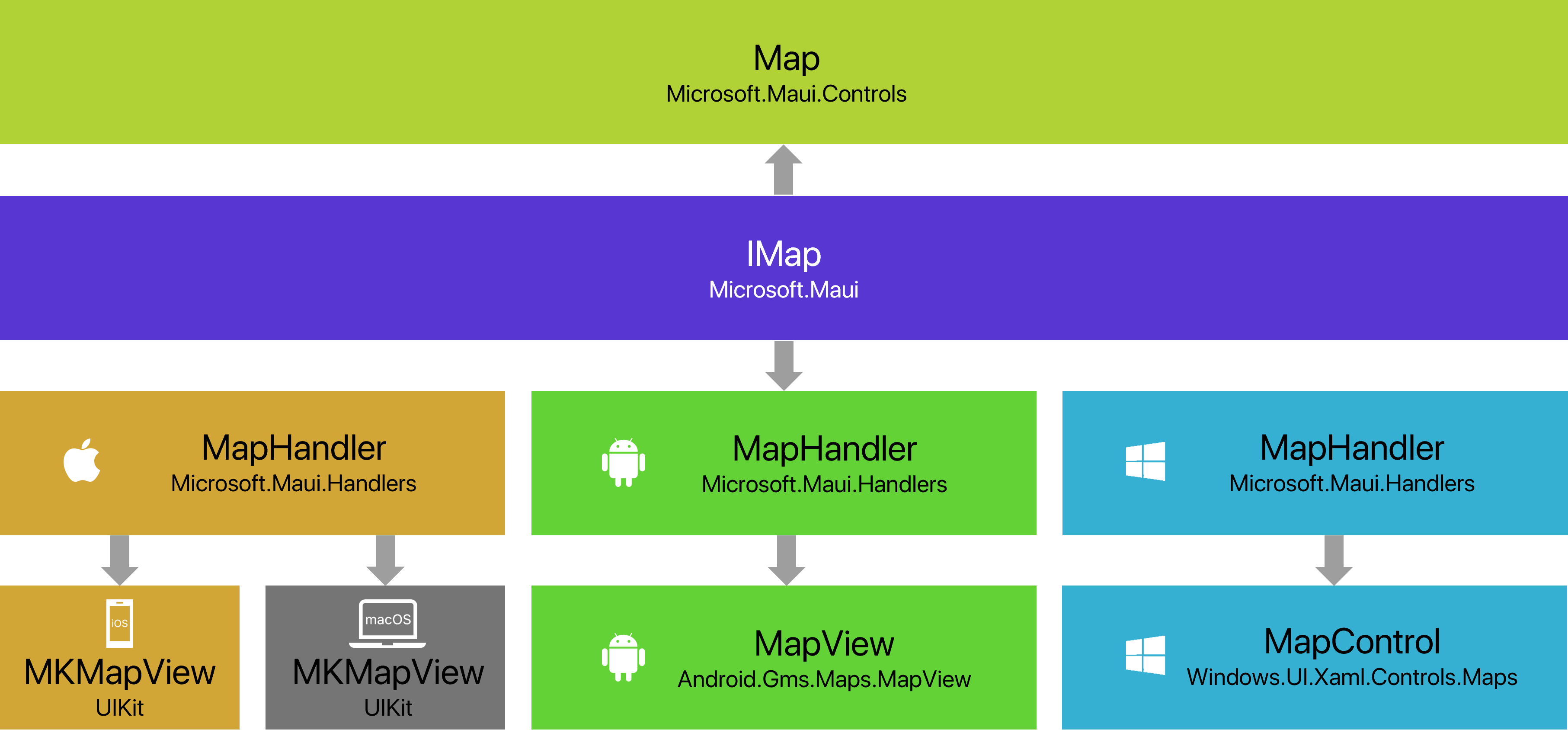
Following the diagram from the official documentation, we have shown our target architecture below. For a quicker start, we decided to copy the code for the map view from the Xamarin Forms implementation and created a corresponding IMap interface. You can find the implementation for the Map class on the Xamarin Forms GitHub repository. It is also an inspiration for more advanced topics like displaying pins or setting a specific position on the map. With the release of .NET MAUI for .NET 7 you do not have to copy those files anymore as they are now part of the .NET MAUI framework together with the handlers.
A handler in .NET MAUI is also used to add functionality to existing controls in the framework or to extend them with fully custom implementations. If you are already familiar with the principle of Xamarin Forms custom renderers, switching to handlers in MAUI will not be difficult.
Creating the BaseHandler
To extend .NET MAUI with a new map control, you need a BaseHandler for the platform-independent part and the implementations for each platform to be supported. In our case Android and iOS. The BaseHandler essentially just consists of the methods and properties that our map handler wants to provide for use.
public partial class MapHandler
{
    public static IPropertyMapper<IMap, MapHandler> MapMapper = new PropertyMapper<IMap, MapHandler>(ViewMapper)
    {  };

    public MapHandler() : base(MapMapper)
    {  }
}
It is important to mention that we are not coding against the concrete map control but against the IMap interface. Our platform-specific handler implementations will be derived from the generic ViewHandler implementation. With that three important methods need to be implemented:
CreatePlatformView is called to instanciate and setup the native view.
ConnectHandler is called everytime our custom control is placed on a page that will appear.
DisconnectHandler is called everytime the page that holds our custom control will disappear.
Creating a handler for Apple Maps
Due to the fact how the Apple Maps API is designed, it is simpler to start with writing a MAUI maps handler for. We need to create an iOS-MapHandler class which is also a partial class with the same name but placed under the platform-specific folder. As mentioned before, notice that we derived from the generic ViewHandler implementation in which we connect our map control with the iOS specific MKMapView control. A simplified Apple Maps MAUI handler can look like the following implementation.
public partial class MapHandler : ViewHandler<Map, MKMapView>
{
    public MapHandler(IPropertyMapper mapper, CommandMapper commandMapper = null)
        : base(mapper, commandMapper)
    {  }

    protected override MKMapView CreatePlatformView()
    {
        return new MKMapView(CoreGraphics.CGRect.Empty);
    }

    protected override void ConnectHandler(MKMapView PlatformView)
    {  }

    protected override void DisconnectHandler(MKMapView PlatformView)
    {
        // Clean-up the native view to reduce memory leaks and memory usage
        if (PlatformView.Delegate != null)
        {
            PlatformView.Delegate.Dispose();
            PlatformView.Delegate = null;
        }

        PlatformView.RemoveFromSuperview();
    }
}
Mac and iOS share the underlying frameworks and APIs for handling the user interface. This way, by copying the handler to the MacCatalyst folder of the project, we also get this platform supported.
Creating a handler for Google Maps
To get Google Maps working in our .NET MAUI app, we need some preliminary work.
Let's take a look at the .NET MAUI Android handler. In order for us to interact with the Google Maps control, we need to wait for the OnMapReady callback. Unfortunately, we run into an InvalidCastException when we try to implement and use the IOnMapReady interface directly in our ViewHandler. The solution for this is our MapHelper class. It derives from Java.Lang.Object and therefore makes it easy for us to implement the IOnMapReady interface.
Last but not least, we need to pass the Android OnCreate lifecycle event to our MapView. For this we need an Android Bundle.
Everything is already provided in the code before. There is a static Bundle property that we now need to set. To do this, we switch to the MainActivity of the Android project and adjust the code accordingly.
public class MainActivity : MauiAppCompatActivity
{
    protected override void OnCreate(Bundle savedInstanceState)
    {
        base.OnCreate(savedInstanceState);

        MapHandler.Bundle = savedInstanceState;
    }
}
If you see a message like: Warning: warning XA4212: Type MapControlDemo.Handlers.MapHandler implements Android.Runtime.IJavaObject but does not inherit Java.Lang.Object or Java.Lang.Throwable. This is not supported. (MapControlDemo)
Adding the following property group entry into your csproj should fix this:
Now you have made it this far, so we assume you gained some interest into our work. That is totally fine. Be our guest and give us some feedback or discuss a project of yours. We will be happy to hear from you.
In order for our .NET MAUI app to use the map handler, it still needs to be registered. To do this, go to the MauiProgram.cs and add the following lines to the builder:
This line tells MAUI that every time a call to MapHandlerDemo.Maps.Map is made, MAUI should use the MapHandler to render and display this control. If the handler has not been registered correctly, the following error message will be thrown every time you try to use an instance of the handler: "System.Exception are thrown: Handler not found for view...".
It's time for us to look at the map. For the sake of simplicity, I have created a new ContentPage for our map directly in the main entry point and set it as the main page.
public partial class App : Application
{
    public App()
    {
        InitializeComponent();

        MainPage = new MapsPage();
    }
}

public class MapsPage : ContentPage
{
    public MapsPage()
    {
        Content = new Maps.Map();
    }
}
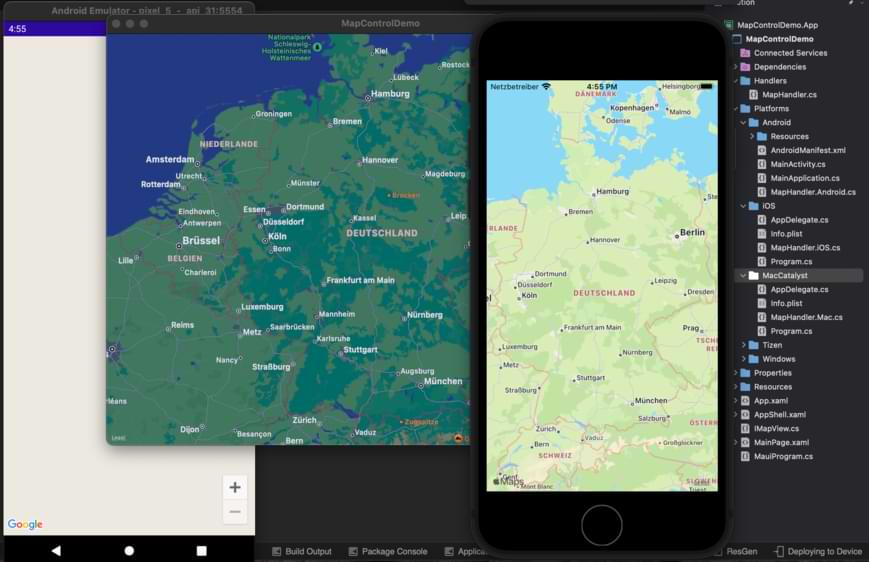
Depending on the chosen platform, the result will correspond to the graphic below.
How to go on with .NET MAUI controls
We have integrated a map into our .NET MAUI app. You can now customize and extend the functionality and behavior according to your needs. Even the complete exchange of the map provider e.g. instead of Google Maps just use Open Street Maps is now possible.
Conclusion
With the new project structure and the handler concept of .NET MAUI, platform-specific controls can be integrated quite quickly and easily. Whether you like partial classes or not is up to you. But what I definitely like is the clean and structured design of the handlers. The demo project and all files can be found on the public Cayas Bitbucket.
FAQ
Add the NuGet package Microsoft.Maui.Controls.Maps, place the map control on your page, and register the handlers by adding UseMauiMaps() in MauiProgram.cs. This built-in approach works with .NET 7 and later.
A custom map handler lets you replace the default map implementation with your own platform-specific code for Apple Maps or Google Maps. It follows the MAUI handler architecture where a cross-platform interface is mapped to native controls on each platform.
You can add custom pins by extending the map handler to support pin collections. The custom handler approach allows you to define pin models with position, title, and custom icons, then render them using native map annotations on iOS or markers on Android.
The .NET MAUI map control is a cross-platform wrapper that displays Apple Maps on iOS and Google Maps on Android. Since .NET 7, it is included as an official component via the Microsoft.Maui.Controls.Maps NuGet package.
Map overlays such as polygons or polylines can be created by extending the custom map handler. You define overlay data in your cross-platform model and implement platform-specific rendering in the iOS and Android handler implementations.
Sebastian Seidel
As a mobile enthusiast and managing director of Cayas Software GmbH, it is very important to me to support my team and our customers in discovering new potential and growing together. Here I mainly write about the development of Android and iOS apps with Xamarin and .NET MAUI.
Bluetooth Low Energy with .NET MAUI: This article shows how to connect BLE-enabled devices cross-platform for Android and iOS. The LEGO Porsche GT4 e-Performance with the official LEGO Wireless Protocol serves as a practical example, including hub service, port detection, and motor control.
This post is a continuation of the Hackathon topic post, where the technical implementation of voice commands in .NET MAUI is revealed, as well as the challenges the development team faced and how they successfully solved them.
As mobile app developer, we constantly have the need to exchange information between the app and the backend. In most cases, a RESTful-API is the solution. But what if a constant flow of data exchange in both directions is required? In this post we will take a look at MQTT and how to create your own simple chat app in .NET MAUI.